
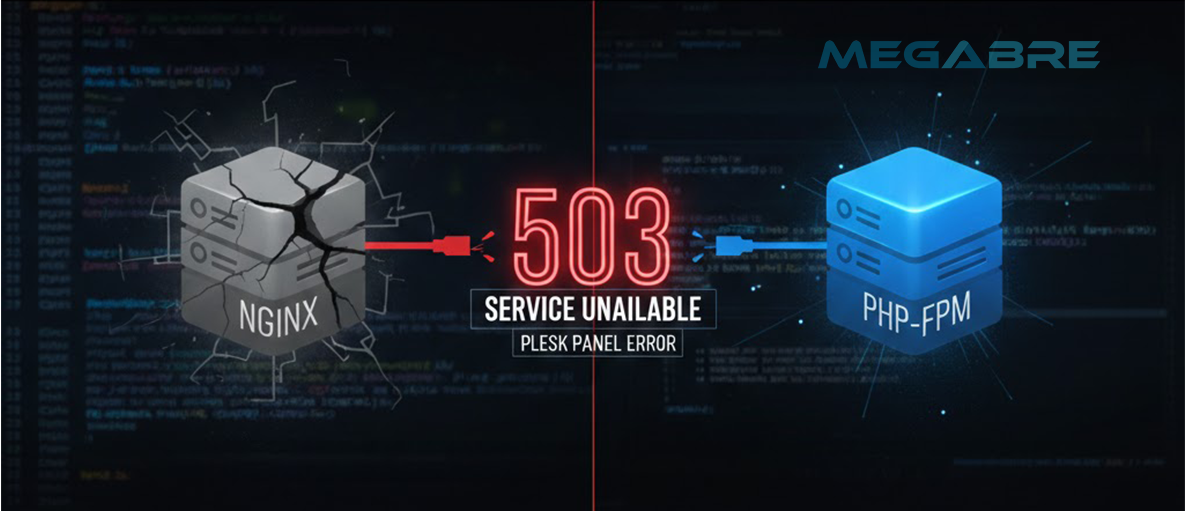
How to Fix Plesk Panel Error 503: Service Unavailable (Comprehensive Guide)
For server administrators and website owners, encountering the "503 Service Unavailable" error on a Plesk-managed server is an immediate red flag. Unlike a 404 error, which indicates missing content, a 503 error means the server is physically online but currently unable to handle the request.
At Megabre.com, we understand that downtime equals lost revenue. In this technical deep dive, we will analyze the anatomy of this error and provide definitive steps to resolve it.
What is the 503 Service Unavailable Error?
In the context of Plesk, a 503 error occurs when the web server (NGINX or Apache) receives a request but cannot get a response from the backend service—typically the PHP-FPM pool. Essentially, the front door is open, but the staff inside (PHP) is unresponsive or overwhelmed.
Primary Causes of the 503 Error
The "Service Unavailable" status is usually triggered by one of the following factors:
-
PHP-FPM Pool Crash: The specific PHP service assigned to your domain has stopped due to a fatal script error or high load.
-
Resource Exhaustion: The server has reached its RAM or CPU limits, preventing it from spawning new processes to handle incoming traffic.
-
Faulty Application Code: Infinite loops or poorly optimized database queries in WordPress or custom applications can "lock" the PHP service.
-
Application Pool Stoppage: On Windows servers (IIS), the application pool may have crashed or stopped due to repeated errors.
-
Maintenance Mode: A Plesk update or a manual maintenance toggle may have been left active accidentally.
Consequences for Your Business
-
Visitor Attrition: Users are met with a blank error page, leading to immediate bounces.
-
SEO De-ranking: If a 503 error persists for more than 24 hours, search engines like Google may flag the site as unreliable, causing a drop in rankings.
-
Brand Reputation: A persistent 503 error signals poor infrastructure management to your corporate clients.
Step-by-Step Resolution in Plesk
1. Restart PHP Services
In many cases, the PHP handler is simply stuck. Restarting the service often clears the backlog.
-
Log in to your Plesk Panel.
-
Navigate to Tools & Settings > Services Management.
-
Find the
PHP-FPMservice corresponding to your domain (e.g., PHP 8.2 FPM) and click the Restart icon.
2. Increase PHP Resource Limits
If the service crashes frequently, your script might be hitting memory or execution time ceilings.
-
Go to Subscriptions > [Your Domain] > PHP Settings.
-
Increase the
memory_limit(e.g., to 512M). -
Increase the
max_execution_time(e.g., to 300).
3. Analyze the Error Logs (The Technical Approach)
Don't guess—check the logs to find the exact culprit.
-
Go to Domains > Logs.
-
Filter by Apache Error and NGINX Error.
-
Look for messages like "server reached pm.max_children". This indicates your PHP-FPM pool is too small for your traffic volume.
4. Optimize PHP-FPM Pool Settings
If your site handles significant traffic, Plesk’s default settings may be insufficient.
-
Under the domain's PHP Settings, navigate to Additional Configuration and tune the following:
pm.max_children = 50pm.start_servers = 10(Note: These values should be calibrated by Megabre experts based on your server's available RAM.)
Eliminate 503 Errors with Megabre Engineering
Dealing with server crashes can be exhausting. At Megabre.com, we specialize in proactive server management. Our CloudPanel and Plesk-based VDS solutions are engineered with dynamic resource allocation and automated monitoring systems that detect and restart failing services before your visitors even notice.
Don't let error pages define your brand. Experience the stability of an optimized infrastructure.
Was this answer helpful?
Görüşünüz bizim için değerli!