
What is CloudPanel? Installation Architecture, and Detailed Review
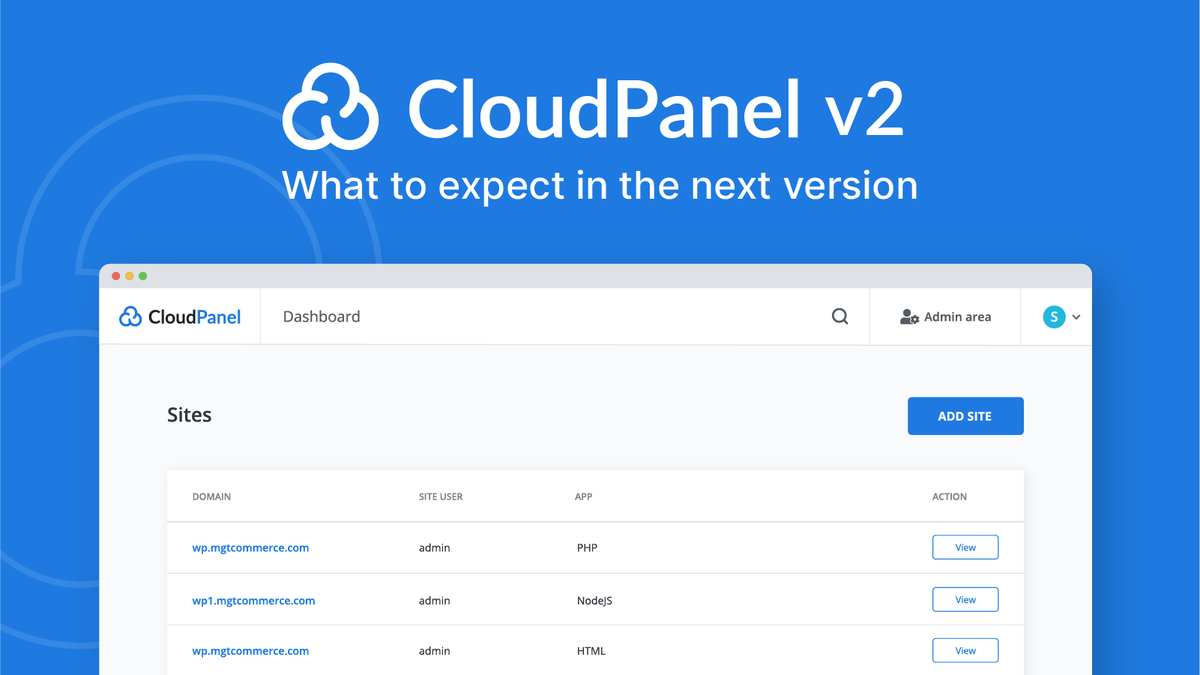
What is CloudPanel? Installation, Architecture, and Detailed Review for Professionals
CloudPanel is a free, performance-oriented web hosting control panel designed specifically for modern VPS and cloud servers. Unlike traditional panels, it focuses on speed, security, and simplicity. This guide explores what CloudPanel is, its architectural philosophy, advantages, and a professional step-by-step installation process.
What is CloudPanel?
CloudPanel differs from "jack-of-all-trades" control panels by focusing exclusively on the needs of modern web applications. Instead of a monolithic structure like cPanel or Plesk, it is built on a lightweight stack: NGINX + PHP-FPM + modern Linux components.
Its target audience is clear: system administrators, agencies, and developers managing VPS, cloud, or dedicated servers. It is not designed for the traditional "shared hosting" business model where hundreds of clients are managed under one interface.
Design Philosophy
The core idea behind CloudPanel is: "The person managing the server knows what they are doing; the panel should not get in their way."
-
No unnecessary services: Only essential components are installed.
-
Modularity: Every component is separate and controllable.
-
Performance over Compatibility: Speed is prioritized over supporting legacy tech.
-
GUI as a Companion: The web interface complements the CLI, it doesn't try to replace it entirely.
This approach ensures stability even on low-resource VPS instances, eliminating the common complaint that "the panel is slowing down the server."
Supported Technologies & Architecture
CloudPanel is engineered to support modern web stacks:
-
Web Server: NGINX (acting as a reverse proxy and web server).
-
PHP: PHP-FPM with support for multiple versions simultaneously.
-
App Support: Node.js and Python-based projects.
-
Databases: MariaDB / MySQL.
-
Static Sites: Native support for static HTML/JS sites.
PHP versions are assigned on a per-site basis and isolated using PHP-FPM pools, which is a major advantage for agencies hosting diverse projects on a single server.
Security Approach
CloudPanel follows a "minimal attack surface" strategy:
-
UFW-based Firewall: Easy management of server ports.
-
Auto-SSL: Integration with Let’s Encrypt.
-
SSH Key Management: Secure access through the UI.
-
Two-Factor Authentication (2FA): Enhanced login security.
-
Site Isolation: Minimizing the risk of cross-site contamination.
Who is CloudPanel For?
CloudPanel is a conscious choice for specific users:
-
Cloud Users: Those using AWS, DigitalOcean, Hetzner, Vultr, etc.
-
Modern Devs: Users running WordPress, Laravel, or Node.js.
-
Agencies: Teams requiring high performance and easy site deployment.
-
Sysadmins: Professionals who want control without the bloat.
Note: If you require built-in email hosting, billing systems, or reseller tools, CloudPanel is not the right tool for you.
Step-by-Step Installation Guide
1. Requirements
-
Operating System: Ubuntu 22.04 LTS (Recommended), Ubuntu 24.04 LTS, or Debian 11/12.
-
Clean Slate: A fresh server without Apache, MySQL, or other panels pre-installed.
-
Hardware: Minimum 1GB RAM (2GB+ recommended).
2. Pre-Installation Setup
Connect to your server via SSH as root and set your hostname and timezone:
hostnamectl set-hostname panel.example.com
timedatectl set-timezone UTC
apt update && apt upgrade -y
3. Running the Installer
CloudPanel uses a single official script to configure the environment:
curl -sSL https://installer.cloudpanel.io/ce/v2/install.sh | bash
The script will automatically configure NGINX, PHP-FPM, MariaDB, and the firewall. This usually takes 5–10 minutes.
4. Initial Access
Once complete, access the panel via port 8443:
https://YOUR_SERVER_IP:8443
You will be prompted to create an admin user. Immediately enable 2FA after logging in for the first time.
5. Site Creation & SSL
Adding a site is straightforward:
-
Select the application type (e.g., WordPress or PHP).
-
Set the domain and PHP version.
-
Once the DNS points to the server, click "SSL Store" to issue a Let’s Encrypt certificate with one click.
Frequently Asked Questions (FAQ)
| Question | Answer |
| Is it free? | Yes, CloudPanel is completely free with no hidden fees or limits. |
| Does it include Email? | No. It is recommended to use external services (like Google Workspace or Zoho) for email. |
| Is it good for WordPress? | Excellent. The NGINX/PHP-FPM stack provides superior TTFB for WordPress. |
| Does it support PHP 8.5? | Yes, it stays updated with the latest PHP releases. |
Is it Worth It?
For professionals who prioritize performance, simplicity, and server control, CloudPanel is one of the best choices in the market. It removes the "black box" feel of traditional panels and provides a clean, fast environment for modern web apps.